Time
Log hours on issues with a timer or by hand, and see them by day and by person.
Log time
Time is logged on issues, in two ways:
- Timer. Press
Shift+T, or the play button on an issue, and the timer runs until you stop it. It writes the entry itself. - By hand. Press
T, or Log time, pick the issue and enter the hours for a day.
An issue shows the total under Time spent, next to its estimate.
The time people spend in calls is counted too, as time on the meeting’s project.
The Time page
Time in the sidebar shows what was logged, day by day.
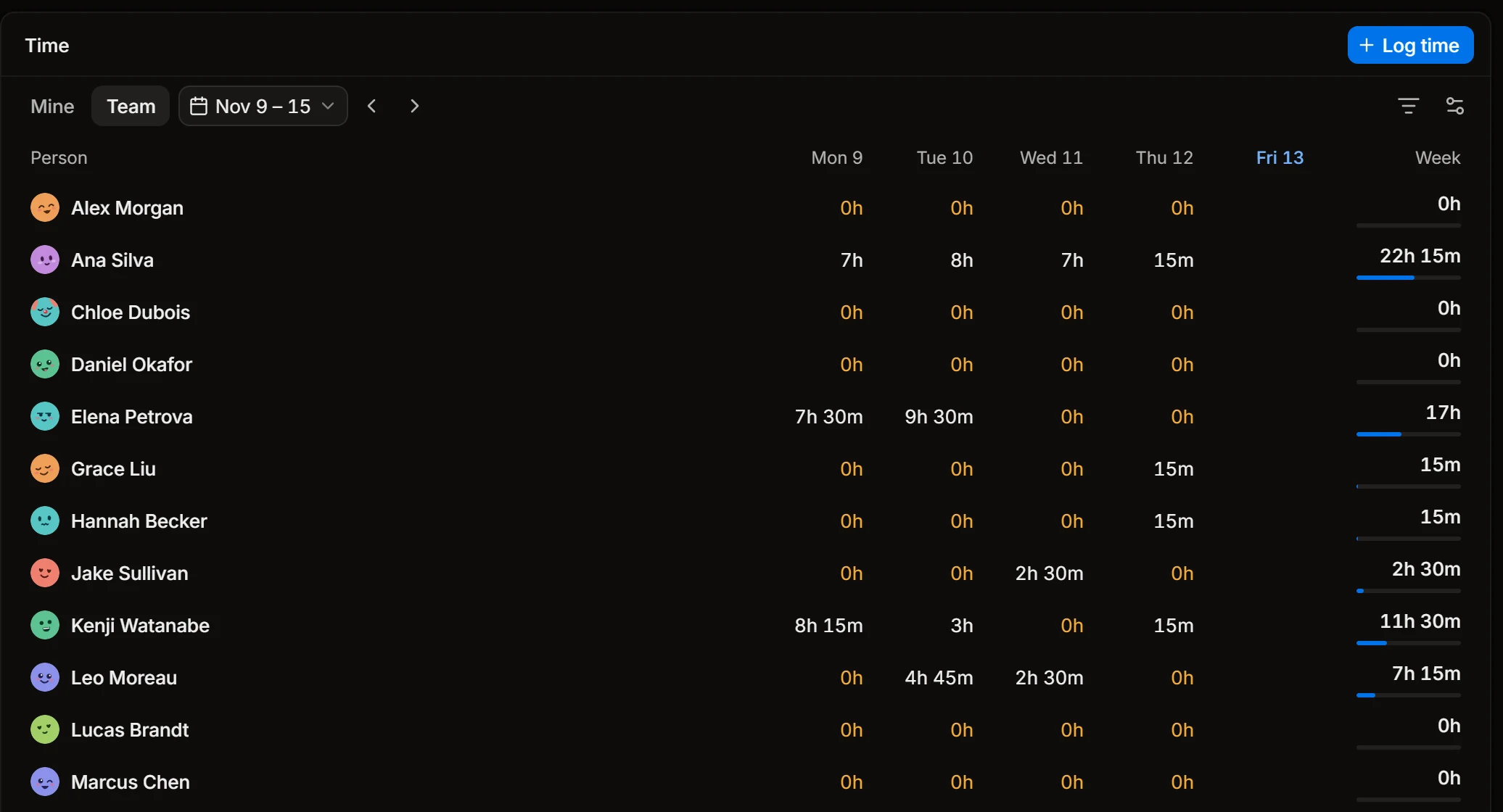
- Mine lists your own entries by day, with the day’s and the week’s total. Edit or delete an entry from its menu.
- Team shows one row for each person and one column for each day. The bar under a person’s total is their week against the hours they were expected to work. A working day with nothing logged is marked in amber.
Choose the period at the top: this week, last week, this month, last month, or step back and forward. The filter narrows the table to a project or to time logged on issues or on meetings.
Who sees the team’s time depends on their role: see Members and roles.
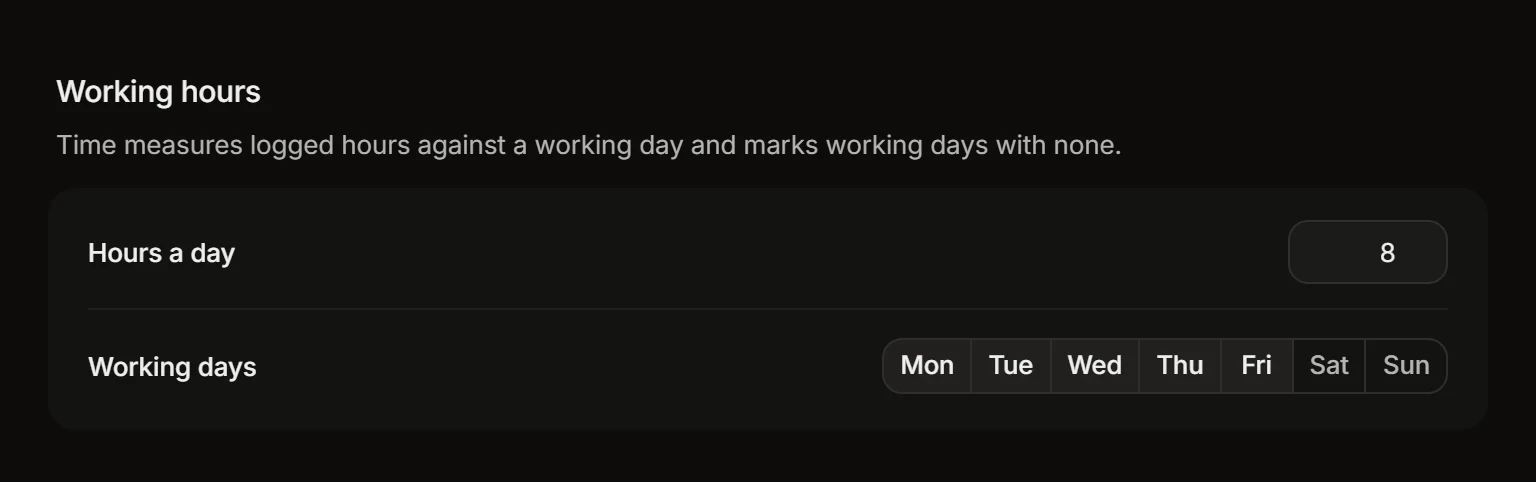
Working hours
In Settings › General, Working hours says how many hours a working day has and which days are working days. Time measures the logged hours against that.
Reports
A board made from the Time template has the charts: hours by project, by person and by day, logged hours against the norm, and tables by person, by issue and by project that download as CSV.
To get people to log their hours, turn on the loop Log time reminder: it tells each member how many of the week’s hours are still missing.