Calls
Hold calls in Volt. With AI notes on, a call leaves a transcript and a summary with next steps.
Start a call
Press New meeting in Meetings. A meeting belongs to the whole workspace or to one project; invite everyone in it or only some people. People who haven’t joined yet can be reminded from the call.
Copy the meeting’s link to send it to someone yourself. On the Basic and Business plans a call can be open to guests, who join by the link with just a name.
In a call you can turn the camera and microphone on and off, share your screen, raise a hand and write in the call’s chat. The call’s settings choose the camera and microphone and add a background effect.
The list of meetings
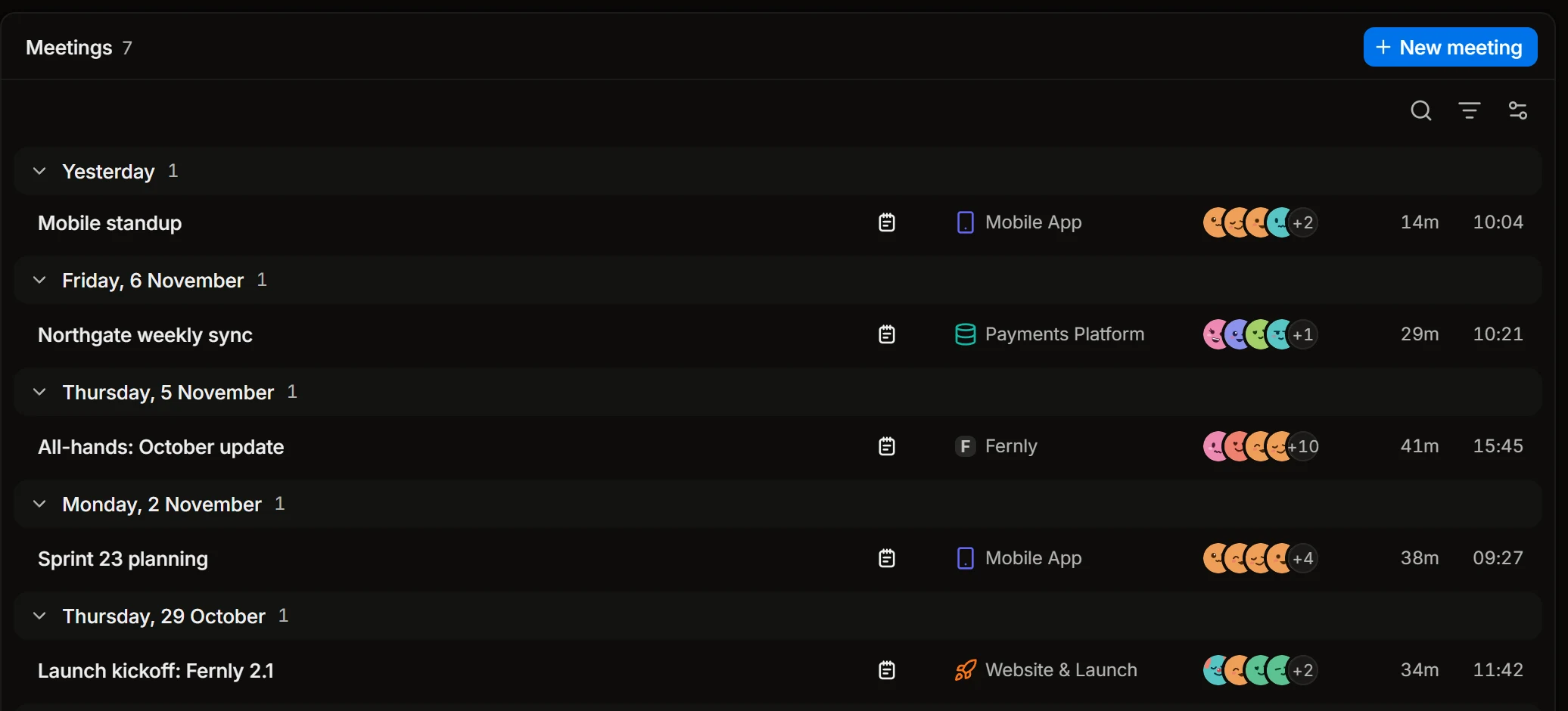
Meetings lists the calls you can see, day by day. A project’s own Meetings shows only its calls.
Recording
Press Start recording to record the call and Stop recording to end it. The recording stays on the meeting’s page for those who can see the meeting.
AI notes
With AI notes on, Volt transcribes what everyone says. Everyone in the call sees that notes are on, and anyone can show the captions while the call goes.
Volt keeps the transcript, not the audio: the sound of a call is stored only when someone records it. Only people who were in the call can read its transcript.
An admin decides in Settings › Volt AI whether the workspace allows AI notes at all, and whether new meetings start with them on.
The summary
When the call ends, Volt writes its summary on the meeting’s page.
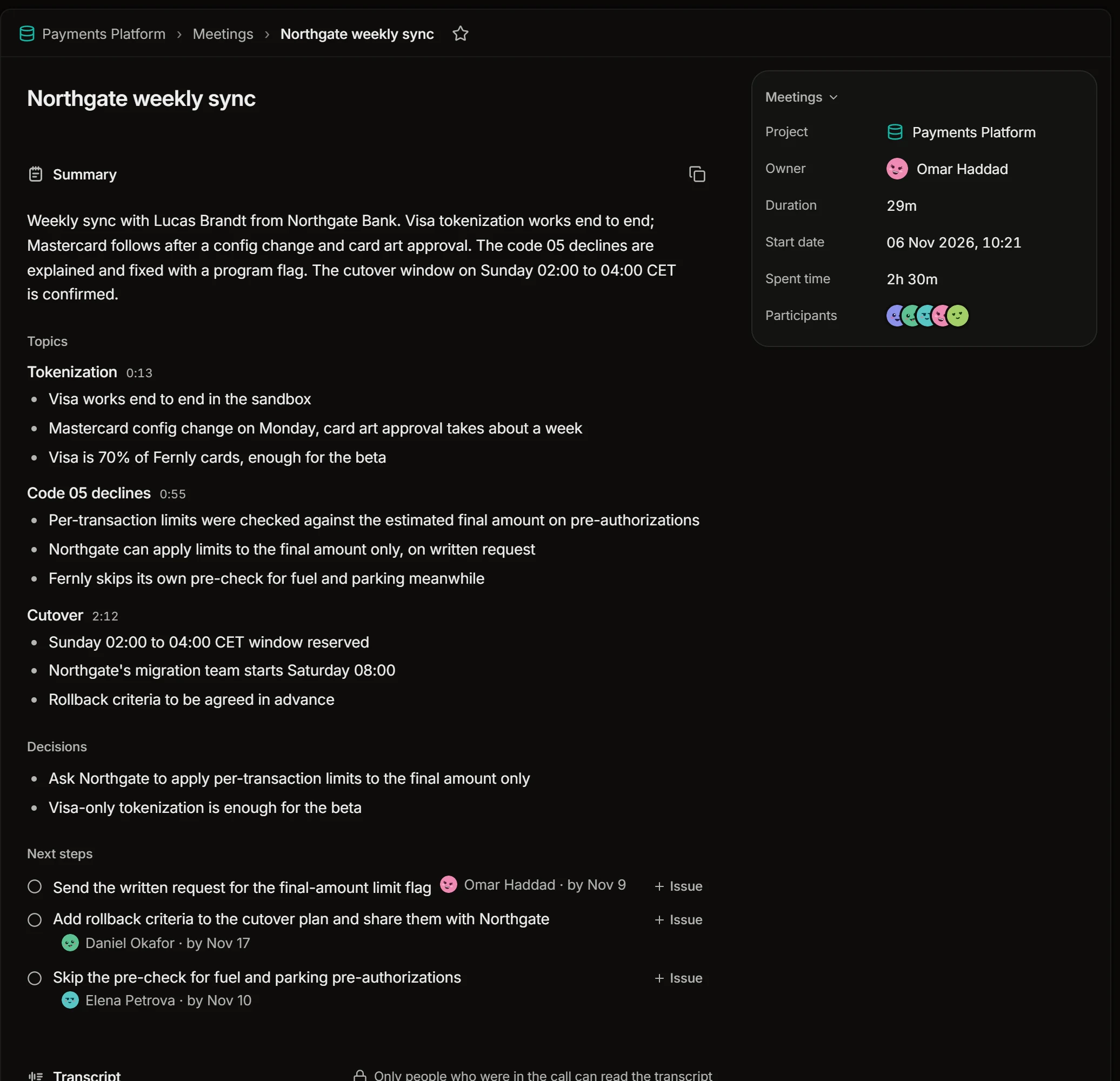
- Topics: what the call was about. Each one opens the transcript at its minute.
- Decisions: what was agreed.
- Next steps: who does what and by when.
Press Issue on a next step to turn it into an issue for that person. Write again makes a new summary, and the copy button puts the summary on the clipboard.
You can be notified when a summary is ready, and a project’s Telegram group can get it too: see Inbox and notifications and Telegram.
Make issues from every call
To turn next steps into issues without pressing anything, turn on the loop Action items from meetings. Meeting prep writes a brief before a weekly meeting: what changed, and where last time’s promises stand. See Loops.
Time in calls
The time people spend in a call is counted as time on the meeting’s project: see Time.
Limits
AI notes count the minutes of the calls they are on. Each plan has minutes for a month, and writing a summary spends AI credits: see Plans and credits.