MCP and API keys
Connect Claude, ChatGPT, Cursor or another AI tool to Volt, so it can read and change your issues and docs.
MCP is the way AI tools connect to other products. With Volt connected, you can ask your AI tool to find issues, create and update them, read and write docs, review pull requests and log time, without leaving it.
Connect an app
Open Settings › MCP and API keys and press Connect app. The page shows the server’s address and how to add it to each app:
- Claude: Settings → Connectors → Add custom connector, paste the address and sign in to Volt.
- ChatGPT: add a custom plugin with the address and sign in to Volt.
- Cursor: add a server with the address in Cursor’s MCP settings and sign in to Volt.
- Claude Code: run the command the page shows, then type
/mcpin Claude Code and sign in to Volt. - Other: any agent that supports MCP with OAuth takes the same address.
When you sign in, Volt asks which workspace the app works in and what it may do there: read only or read and edit, in all of your projects or only in some.
API keys
For an agent that can’t sign in, such as a script or a deploy bot, press Create key.
- Name. It shows on the agent’s changes, like “via Deploy bot”.
- Access. Only read, or read and edit.
- Projects. All of your projects, or the ones you choose.
- Expires. Never, or in a number of days.
Copy the key when it is made: Volt doesn’t show it again. Revoke takes a key’s access away at once.
What an app can do
The app acts as you: it sees what you see and can change what you can change, within the access you gave it. Its changes are marked with its name, like “Alex via Claude”, so the team knows who did what.
Two things are off unless you turn them on for a connection:
- Read meeting transcripts, of the meetings you can see.
- Manage projects and invite people: create and set up projects, add members, invite to Volt.
Deleting always needs your word: the request comes to your Inbox, where you confirm or decline it.
The app also follows the guidance written for Volt AI in the workspace and its projects, and can use your skills: see Volt AI.
Commands
Volt adds ready-made commands to the app. In Claude Code they start with /volt:, in VS Code with /mcp.volt; Claude and Cursor show them in their commands menu.
| Command | What it does |
|---|---|
work_on_issue |
Pulls the issue, its discussion and links, plans, and starts working |
my_day |
Your issues in progress and up next, new mentions, a plan for today |
standup |
Done, in progress and blocked in a project, for a period |
triage |
Suggests priority, assignee and labels for new issues |
break_down |
Splits an issue into sub-issues once you agree |
file_bug |
Turns a description or a log into an issue, after checking for duplicates |
plan_sprint |
Picks the next sprint from the backlog |
sprint_review |
What got done, what slipped, what to carry over |
release_notes |
Drafts release notes from closed issues |
write_spec |
Writes a spec doc: problem, proposal, open questions |
setup_project |
Sets up a project with statuses, labels, members and invites |
meeting_notes |
Decisions and action items from a transcript |
Disconnect an app
Connected apps lists the apps that have access, and each one’s activity: the calls it made in the last 90 days, without their content. Disconnecting an app takes its access away on every device; the changes it made stay.
For admins: agent access
Settings › Agent access decides what agents may do in the workspace as a whole.
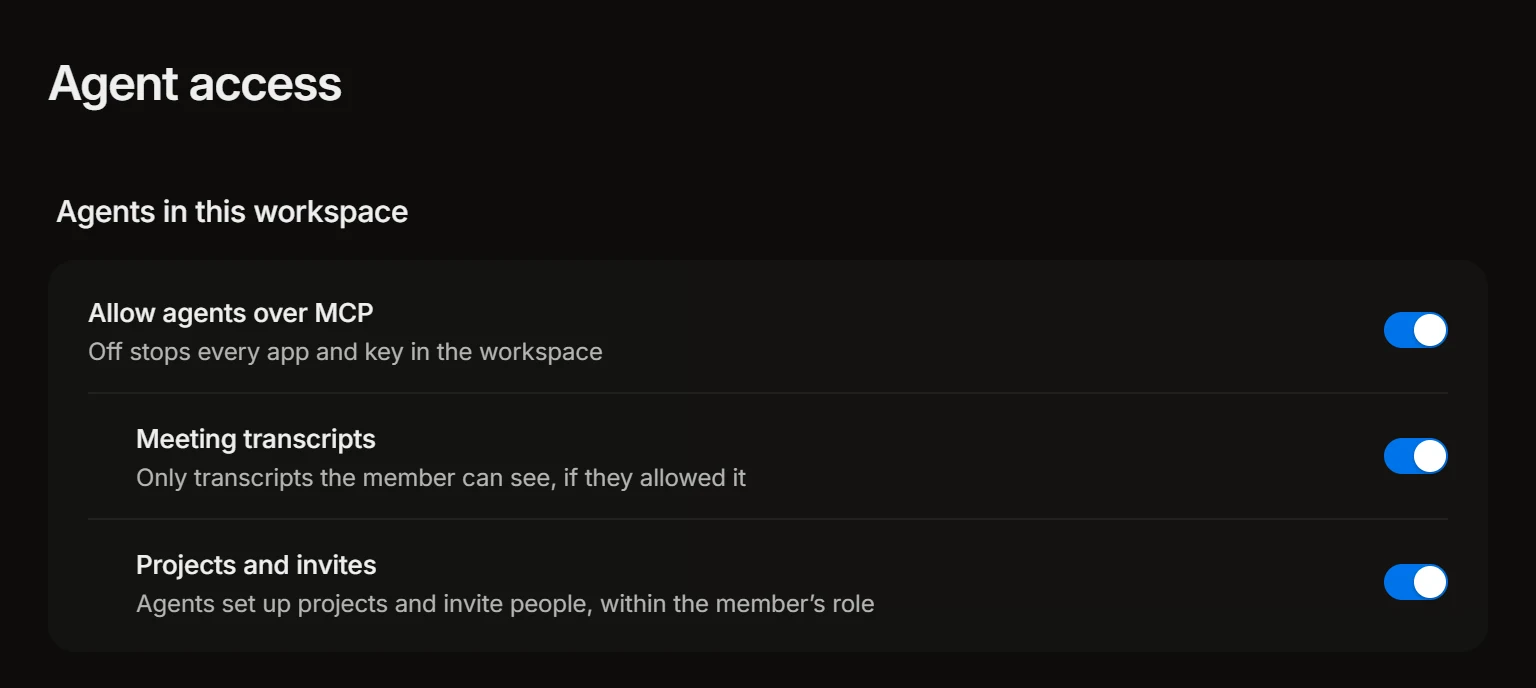
- Allow agents over MCP. Off stops every app and key in the workspace.
- Meeting transcripts. Whether members may let their agents read transcripts.
- Projects and invites. Whether agents may set up projects and invite people, within the member’s role.
Below are the Connections of every member, each of which an admin can revoke, and the Activity of all of them for the last 90 days.