Inbox and notifications
What Volt tells you about, where it tells you, and how to turn each kind on or off.
Inbox
Inbox in the sidebar holds what happened to the things you follow: someone mentioned you, assigned you an issue, commented, asked for your review, or a loop sent you a report.
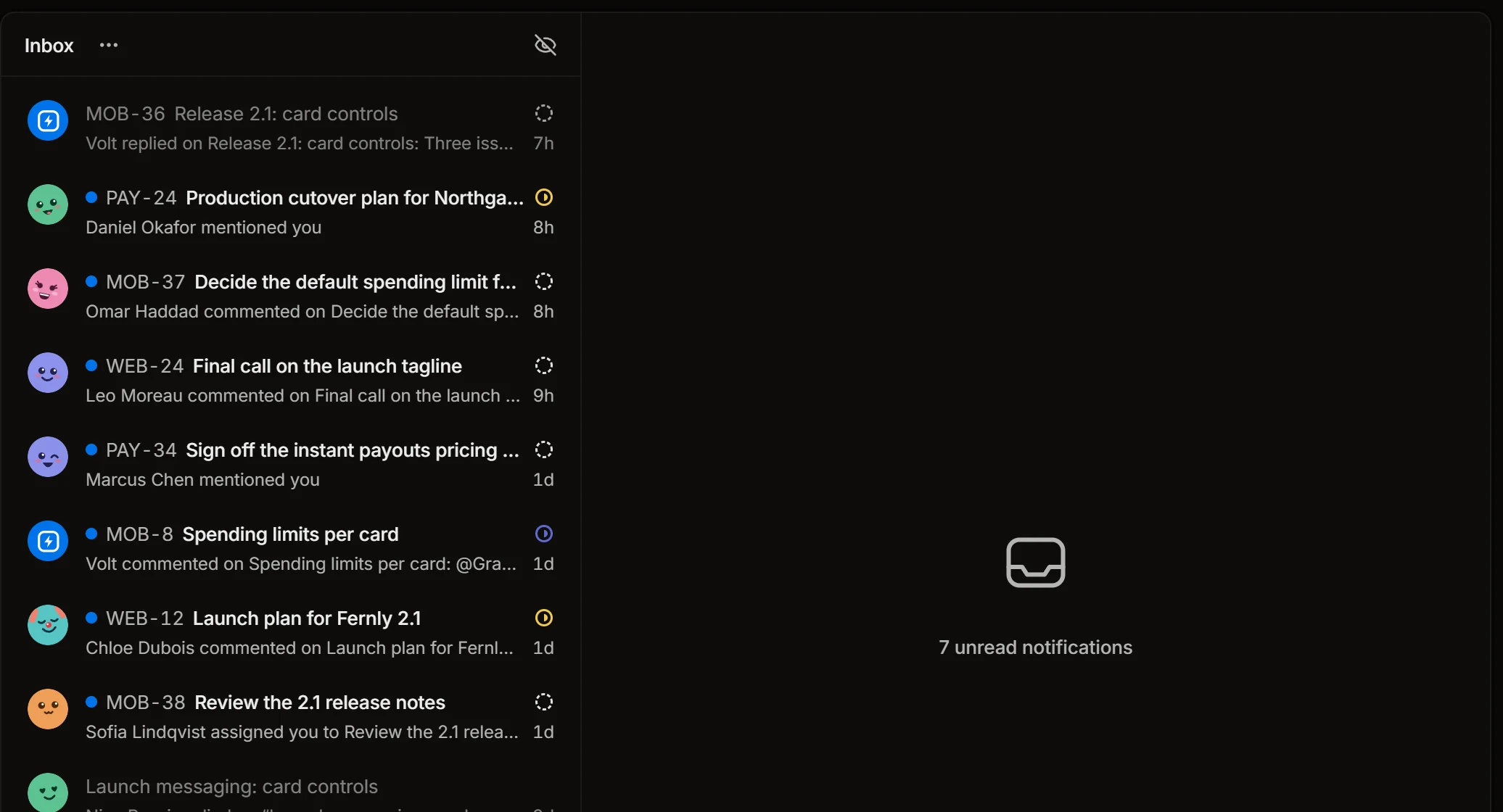
Click a notification and the issue, doc, meeting or pull request opens beside the list, so you can answer and go on to the next one. A blue dot marks what you haven’t read.
- The eye at the top shows only unread notifications.
- The menu marks everything as read, or deletes what you have read, or all of it.
- Each notification can be marked read or unread, or deleted.
Messages from Volt
Loops and Volt AI write to you here too: the daily list, a weekly report, a reminder you asked for. Such a message opens as a letter, with a link to the loop and the run that sent it.
Requests from apps
When an AI tool connected over MCP wants to do something that needs your word, such as deleting an issue, the request comes to the Inbox. Confirm or decline it there. A request expires after a day.
What you are told about
You follow an issue when you create it, comment on it, are assigned to it or mentioned in it. The bell on an issue, or Shift+S, subscribes and unsubscribes you. Subscribe to a doc to hear about its comments.
Where notifications go
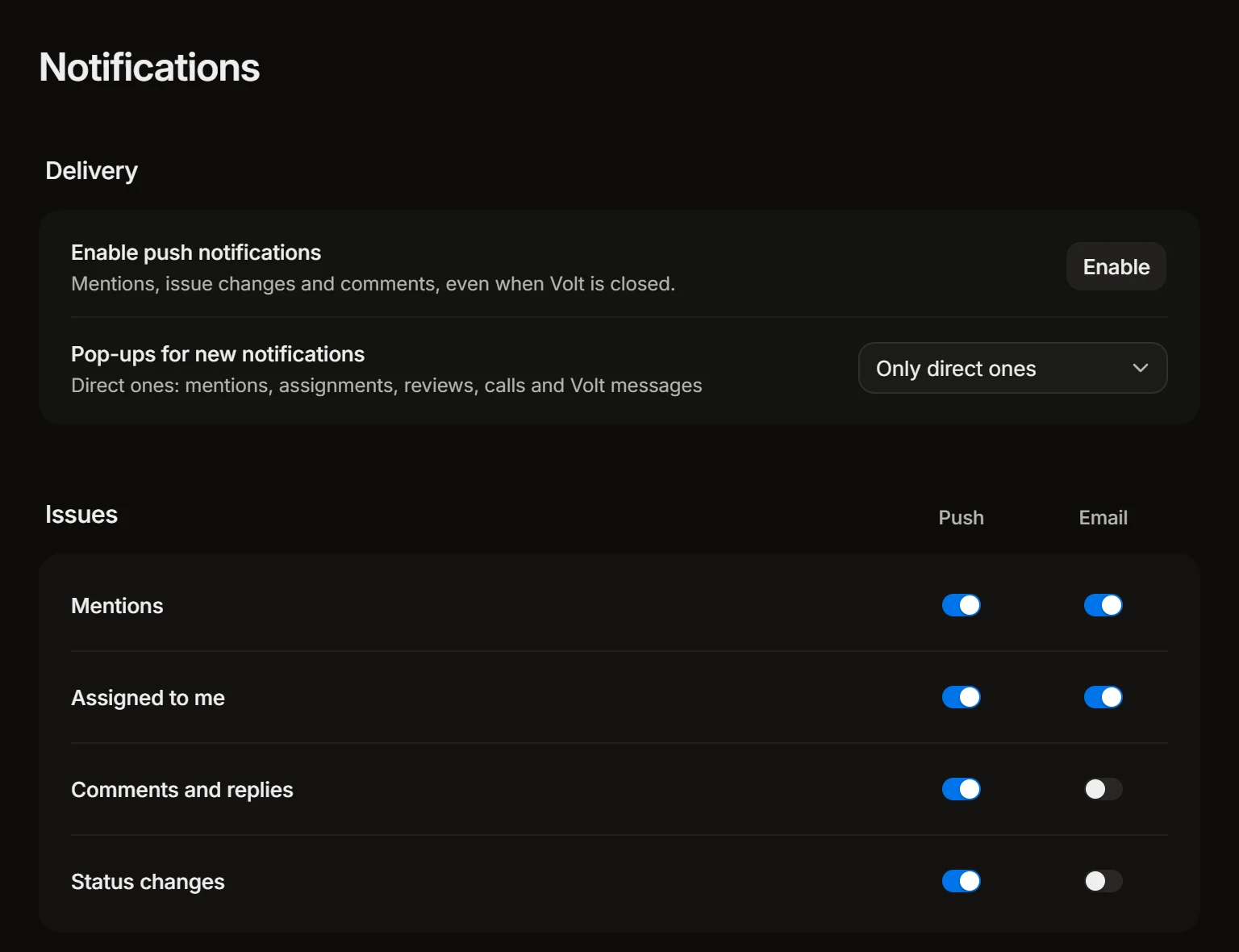
Settings › Notifications has a switch for every kind of notification and every way it can reach you: push in the browser, email, and Telegram once you connect it.
| Group | Kinds |
|---|---|
| Issues | Mentions, Assigned to me, Comments and replies, Status changes |
| Meetings and code | Meeting invitations, Meeting summaries, Pull requests, Coding sessions |
| Volt | Messages from Volt, Loop failures, App requests |
Enable push notifications lets Volt reach you even when its tab is closed.
Pop-ups for new notifications chooses what shows up in the corner of the app while you work: all notifications, only the direct ones (mentions, assignments, reviews, calls and messages from Volt), or none.