Issues
Issues hold the work of a project: who does what, how urgent it is and where it stands.
What an issue has
Every issue belongs to one project and gets an id from the project’s key, like MOB-36.
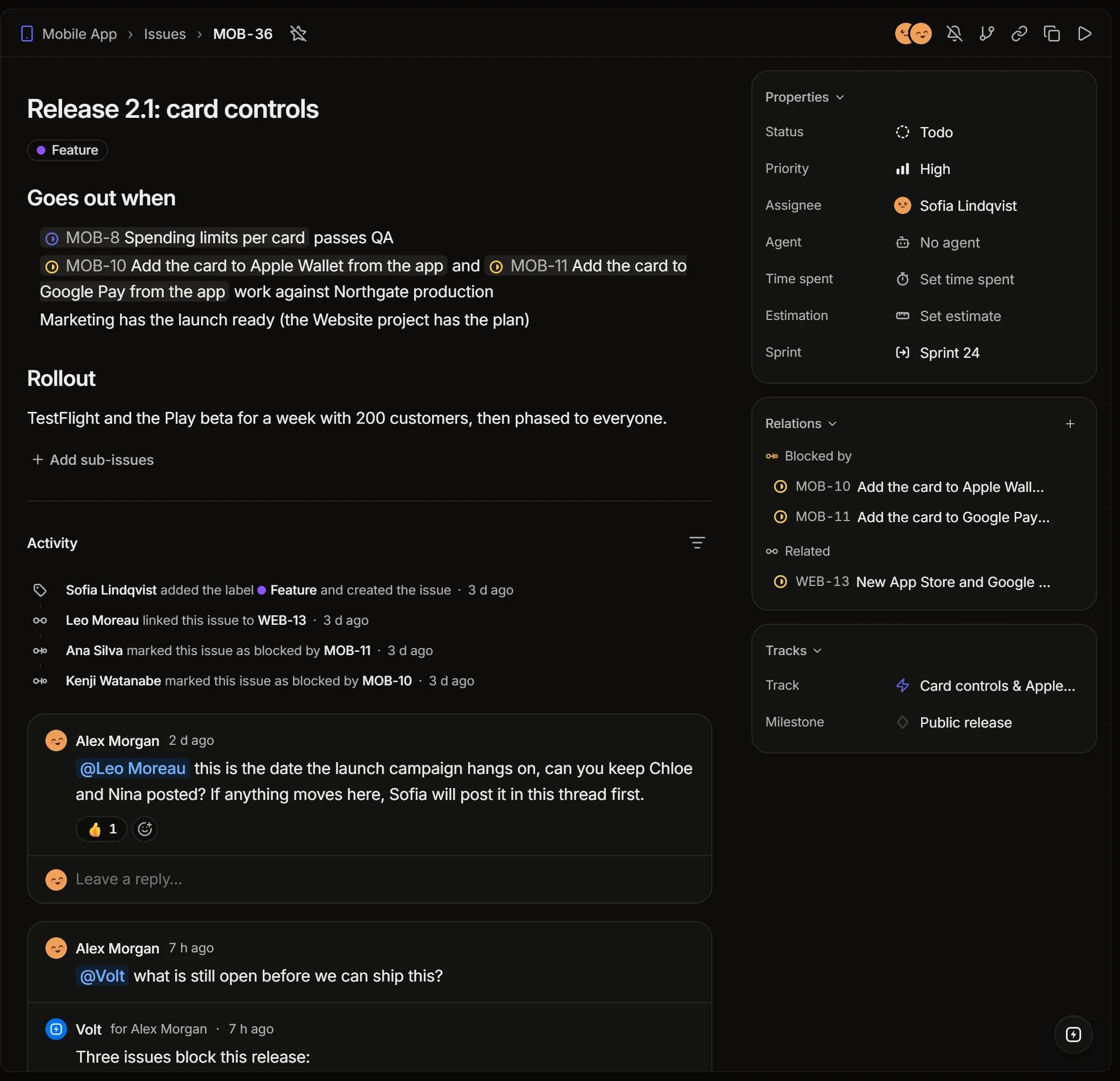
On the right are its properties:
- Status. Each project has its own statuses: see Project settings.
- Priority. Low, Medium, High or Critical, or none.
- Assignee. The person who does it.
- Agent. A coding agent the issue is handed to: see Coding sessions.
- Time spent and Estimation, both in hours. Estimates are part of the Basic and Business plans; a project can give new issues a default one.
- Sprint, when the project uses sprints.
- Track and Milestone, when the issue is part of a track.
Labels sit under the title. Type a new name in the label picker to make a label and pick its color.
Create an issue
Press C anywhere, or use the pencil at the top of the sidebar, New issue in a project, or the command menu (Ctrl+K, then Create issue).
The description
The description is rich text: headings, lists, tables, code, pictures and files. Write an issue’s id, like MOB-8, to link to that issue; the link shows the issue’s title and status and keeps them current.
Select a piece of the description to comment on just that text.
Activity and comments
Under the description is everything that happened to the issue: who created it, changed its status, linked a pull request, and what people said.
- Reply to a comment to keep a thread together, and resolve the thread when it is settled.
- React with an emoji, quote a comment, copy a link to it.
- Mention a person with
@to notify them. - Mention
@Voltto ask Volt AI right in the thread: its answer stays there for everyone. - Attach files by dropping them on the comment box.
Following an issue
You are subscribed to the issues you create, comment on, are assigned to or mentioned in, and hear about what changes in them. The bell at the top of an issue subscribes you or unsubscribes you; Shift+S does the same for every selected issue. See Inbox and notifications.
The top of an issue
The buttons at the top right copy the issue’s git branch name and its link, and start the timer on it. The star beside the id adds the issue to your favorites.
Deleting
Delete an issue from its menu or from a list. If it has sub-issues, they stay as standalone issues.