Start here
Set up a workspace, add your people and your first project, and turn on a loop.
Volt keeps a team’s issues, docs, calls and time in one workspace, and runs the routine around them with loops. This page takes you from an empty workspace to the first loop.
Create a workspace
Sign up with your email or with Google. Volt asks for the workspace’s name and yours, and opens the workspace. A new workspace is on the Free plan, which has no limit on members.
Invite your team
Open Members and press Invite. Enter a teammate’s email and send the invite. New members get the default role; an admin can change a person’s role later. See Members and roles.
Add a project
A project holds its own issues, tracks, sprints, docs, calls, loops and boards. Give it a name and a key: the key starts the id of every issue in the project, so a project with the key PAY has issues PAY-1, PAY-2 and so on.
Then add the people who work on it as the project’s members, and look over its statuses: see Project settings.
Create the first issues
Press C to create an issue. Set who does it, its status and its priority.
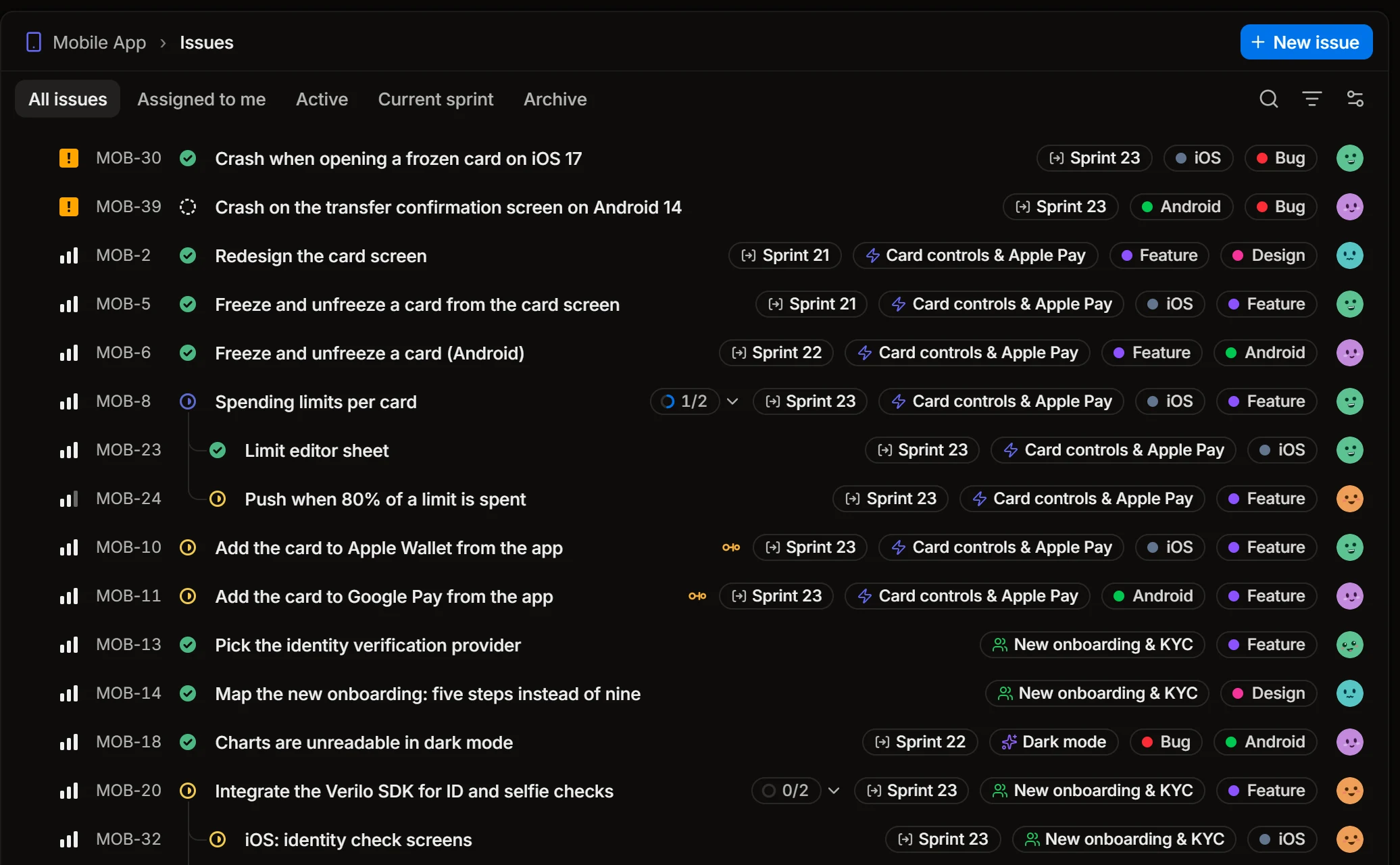
Issues has the rest.
Turn on a loop
A loop is a job Volt does by itself: sorting new bugs, posting the standup, writing the weekly report. Open Loops, press New loop and pick a template, check when it runs and what it is told to do, and press Run now to see what comes out.
Loops explains each setting.
Ask Volt AI
Open Agent and ask something about your work: what is overdue, how the sprint is going, what was decided on a call. See Volt AI.
What to set up next
- Calls: hold a call in Volt and get its summary and next steps.
- Telegram: send your notifications and project updates where your team talks.
- GitHub and GitLab: see pull requests next to their issues, and let them move the issues.
- Coding sessions: hand issues to Claude Code on your own computer.
- MCP and API keys: let Claude, ChatGPT or Cursor work with your Volt workspace.