Sprints
Plan work in periods of a week or two, and let issues join the current sprint by themselves.
Sprints are part of the Basic and Business plans, and each project decides whether to use them.
Turn sprints on
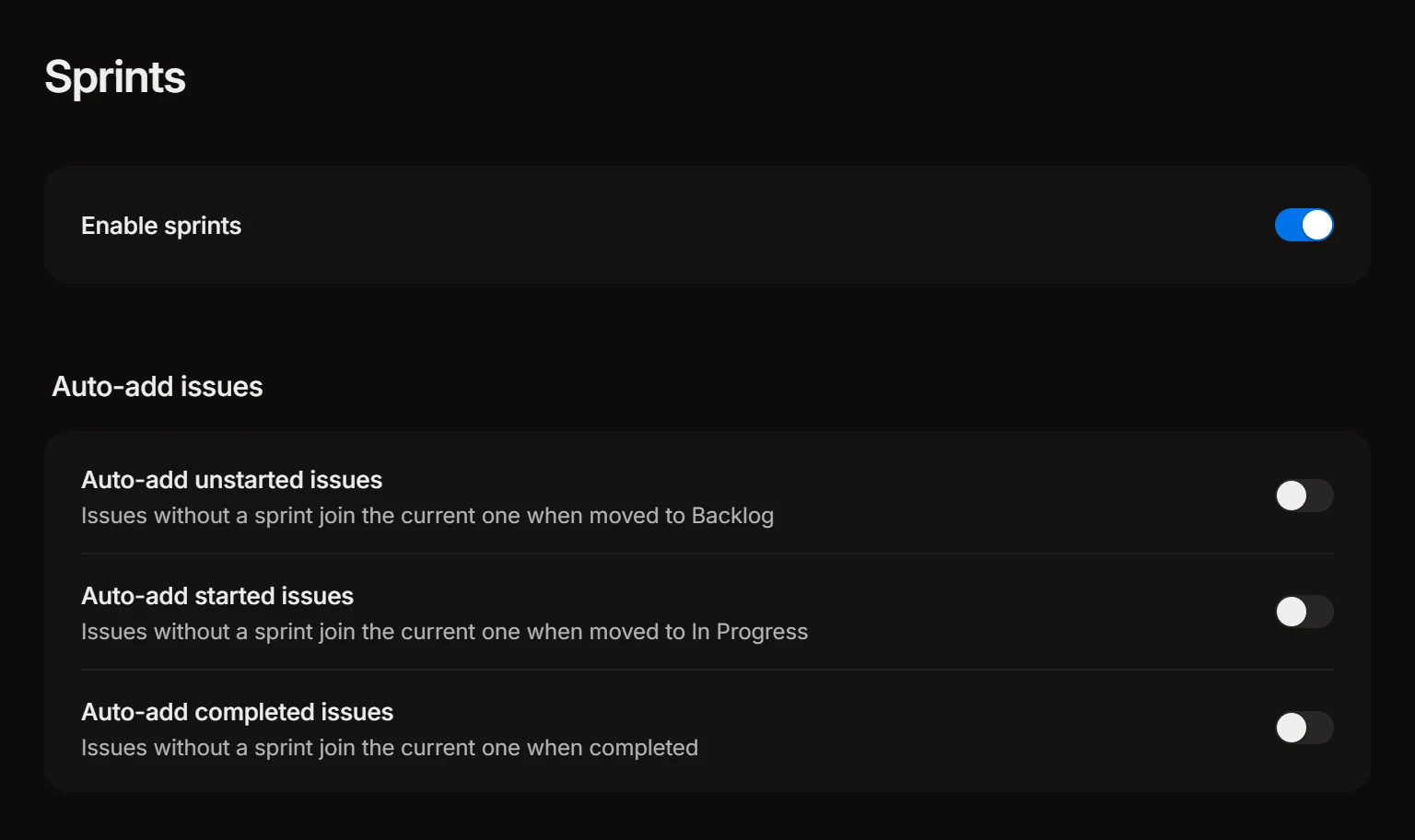
Open the project’s settings, then Sprints, and switch on Enable sprints. The project gets a Sprints page, and its issues get a Sprint property.
Create a sprint
On the project’s Sprints page press Create sprint, and give it a name and its dates. Each sprint in the list shows its dates and how much of it is done; the one going on now is marked Current.
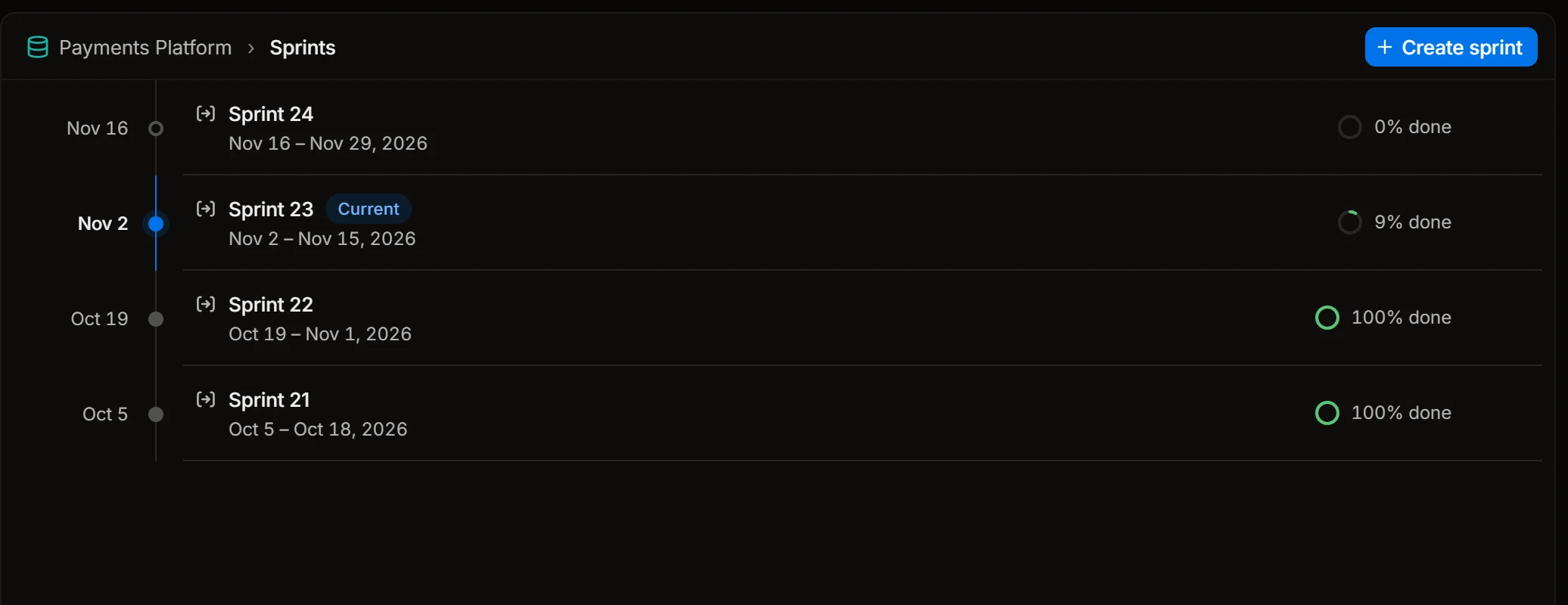
Rename a sprint or change its dates from its menu.
Put issues in a sprint
Set Sprint on an issue, or select several issues in a list and choose Set sprint in the command menu (Ctrl+K).
The Current sprint view of the project’s issues shows what the team is working on now.
Let issues join by themselves
Work that starts in the middle of a sprint often never gets a sprint. Three switches under Auto-add issues take care of that for issues that have none:
- Auto-add unstarted issues: an issue joins the current sprint when it moves to Backlog.
- Auto-add started issues: an issue joins when it moves to In Progress.
- Auto-add completed issues: an issue joins when it is completed.
With the last two on, the sprint shows everything the team really did in it, planned or not.
Follow a sprint
- A board made from the Current sprint template has the sprint’s burn-up, what is left by assignee and the sprint by status.
- Ask Volt AI “How is the sprint going?” for the same in an answer.
- The loops Sprint check and Sprint report look a sprint over before it starts and report on it while it runs: see Loops.