Loops
A loop is a job Volt AI does on a schedule or when something happens in a project.
A loop has three parts: a trigger that says when it runs, instructions that say what to do, and limits on what it may touch and spend. Volt AI does the work of each run.
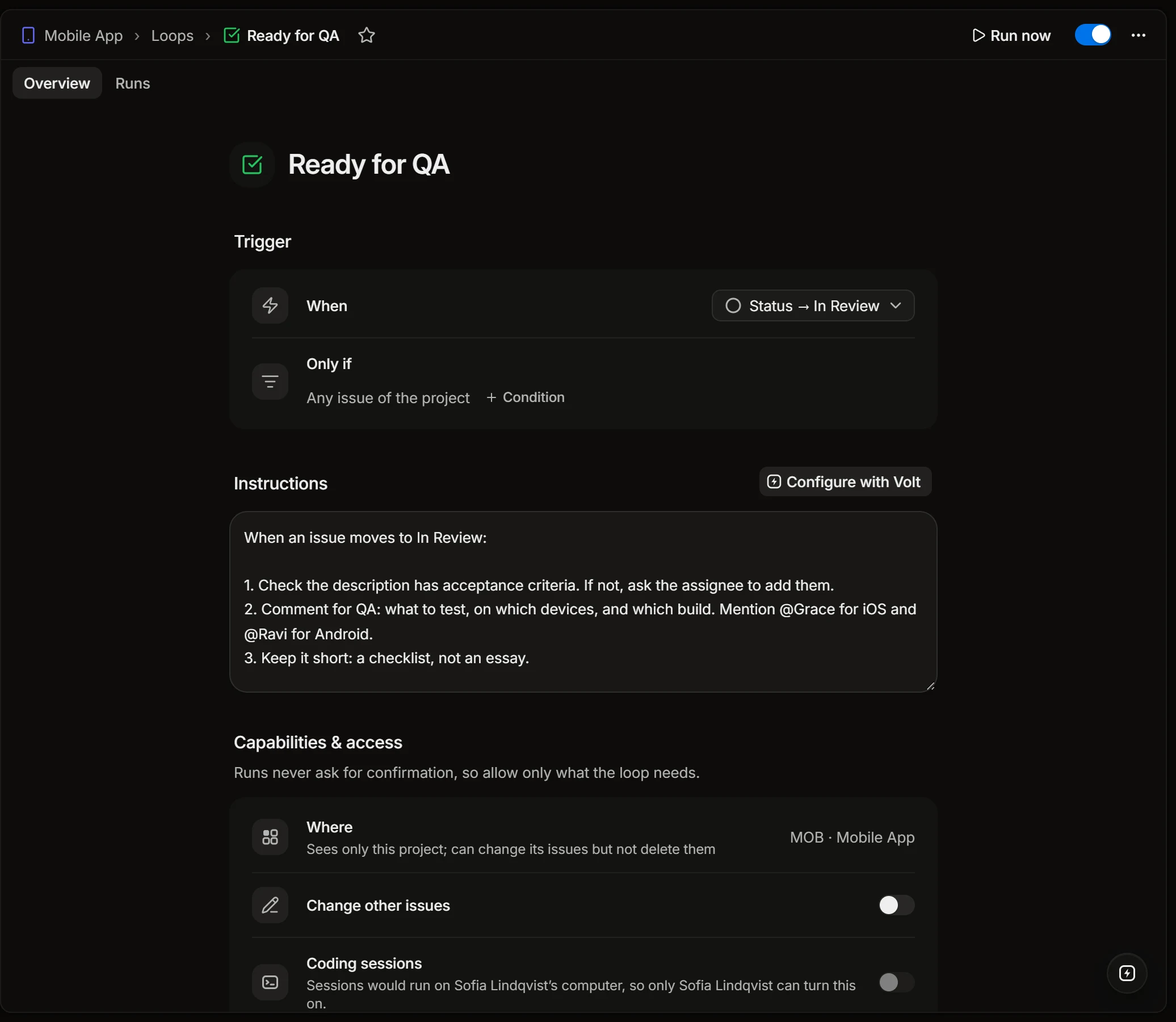
Create a loop
Open Loops in a project, or in the workspace for a loop that looks across projects, and press New loop.
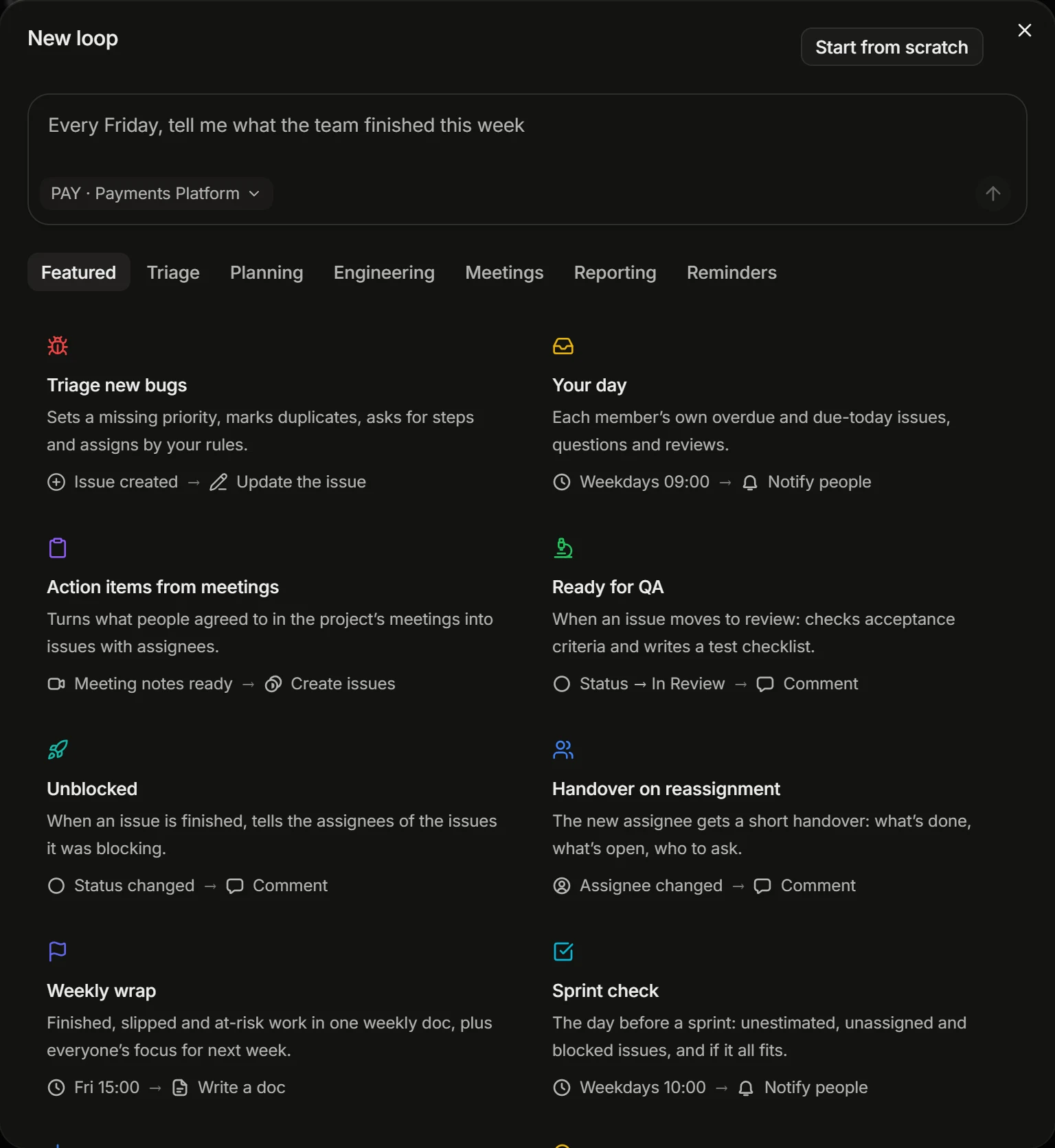
- Describe it. Write what you want in your own words, like “Every Friday, tell me what the team finished this week”. Volt AI sets up the trigger and the instructions, and you check them.
- Pick a template. There are 29, sorted by what they are for: triage, planning, engineering, meetings, reporting and reminders. Read it over, change what doesn’t fit your team, and turn it on.
- Start from scratch opens an empty loop.
Press Run now to try a loop before you leave it on. The switch beside it turns the loop on and off.
Trigger
| When | What starts a run |
|---|---|
| On a schedule | Every so many hours, days, weekdays, weeks or months, on the days and at the time you choose, in your time zone. |
| Issue events | An issue is created, changes (status, priority, people, labels, sprint, track, title or links), gets a comment, or starts to fit a filter. |
| Meetings | A meeting ends, or its transcript and summary are ready. |
| Pull requests | A pull request is opened, becomes ready for review, gets a review request, an approval or requested changes, fails its checks, or is merged. |
| Only by Run now | Nothing: the loop runs when someone presses the button. |
Only if narrows an event with conditions, for example only issues with the label Bug, or only a change of status to In Review.
A loop on “starts to fit a filter” runs once for an issue, and again only after the issue stopped fitting and fits anew.
Instructions
Write what the loop should do the way you would tell a colleague, in steps if there are several. Name people with @ and say what to leave alone.
A loop can read issues, docs, meetings and pull requests, change issues, comment, write docs, send a message to a person and post to a project’s Telegram group.
Configure with Volt opens Volt AI to change the loop by talking: “run it at nine instead”, “skip issues without an assignee”.
Capabilities and access
Runs never stop to ask for confirmation, so a loop gets only what it needs.
- Where. A project’s loop sees only that project and can change its issues, but not delete them. A workspace’s loop sees the projects open to the whole workspace and changes no issues.
- Change other issues. Off, a loop on an issue event changes only the issue that started the run.
- Coding sessions. A loop can hand issues to Claude Code, which opens draft pull requests from the owner’s computer, at most a few a run and a day. Only the owner can turn this on, and only the owner can then edit or run the loop. See Coding sessions.
- Spend limit. A cap in credits a day, a week or a month. At the limit the loop pauses until the next period. With no limit, runs draw on the workspace’s credits.
- Who can edit. Project members, project admins, or only the owner. Everyone else sees the loop read-only.
A loop has an owner: its runs use that person’s rights. If the owner leaves the workspace, the loop pauses.
Runs
The Runs tab lists a loop’s runs. Each one shows what started it, how long it worked, the credits it spent, and step by step what it did. A run ends as Done, Nothing to do or Skipped. When one fails, the owner is told, and Help me fix this run opens Volt AI with the reason.
Run a loop on chosen issues
A loop with an issue trigger can be run by hand on any issues: select them in a list, open the command menu (Ctrl+K) and choose Run loop.
The list of loops
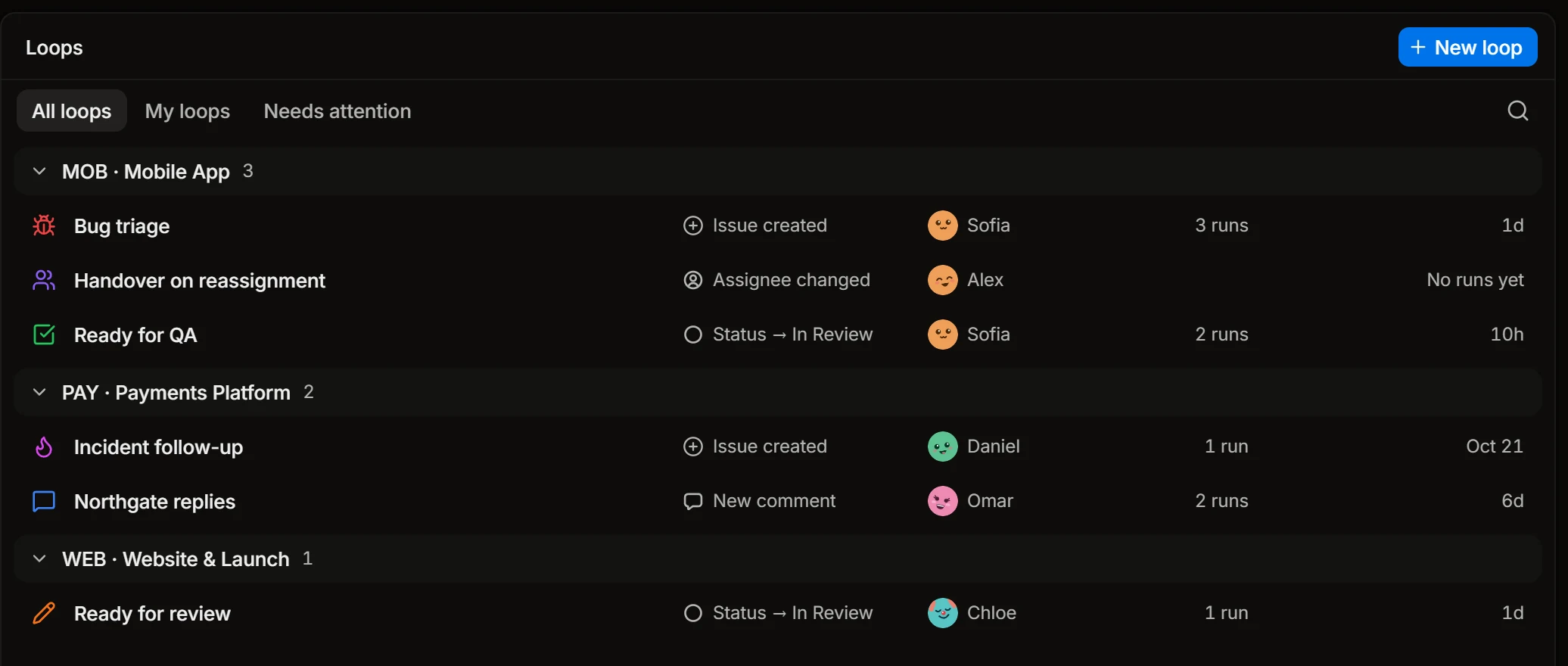
Loops shows each loop with its trigger, its owner, how many times it ran in the last 30 days and when it ran last. Needs attention gathers the loops that are paused: out of credits, at their spend limit, or without an owner.